
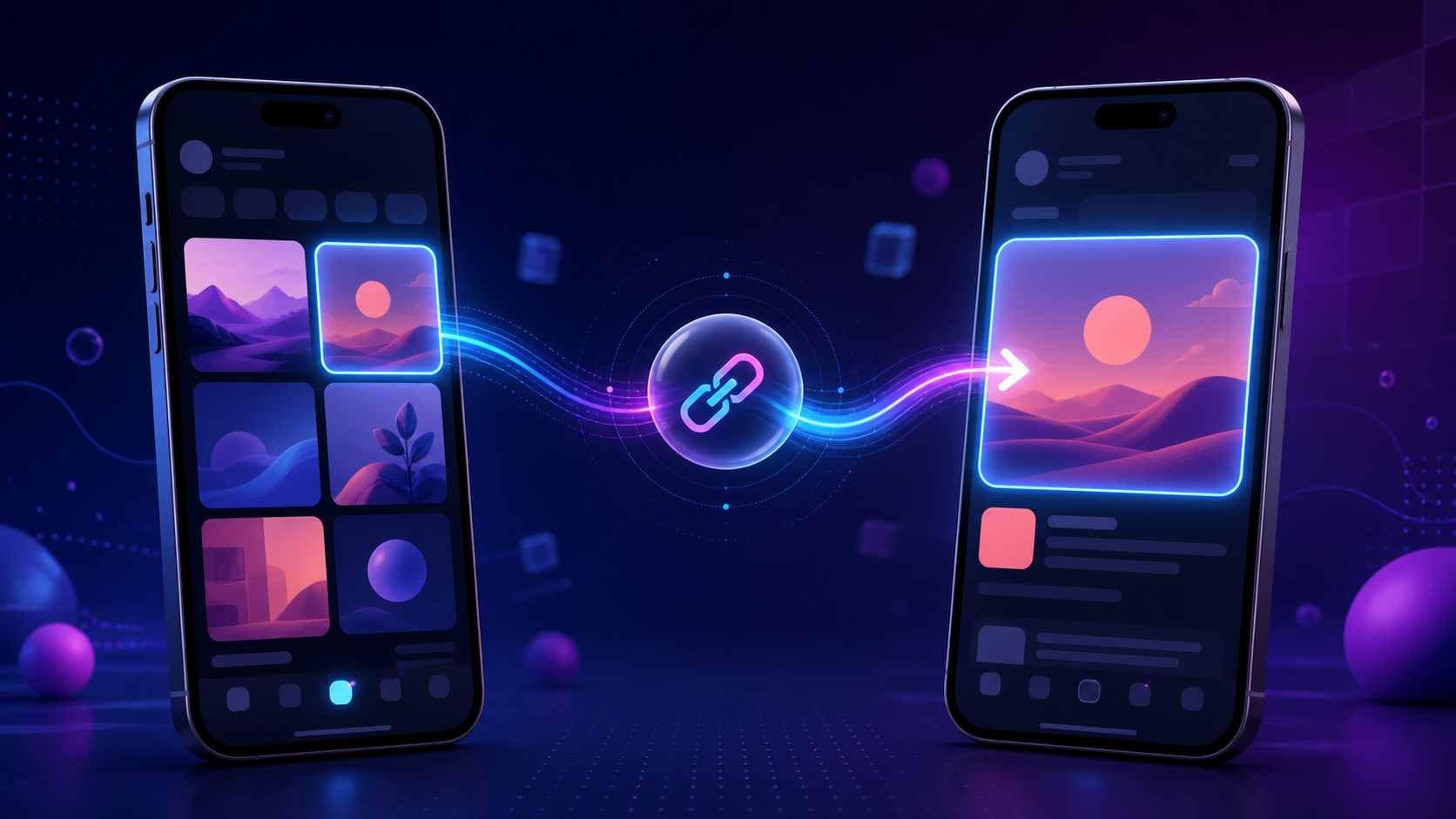
Your Instagram campaign promises a specific product, episode, offer, or creator page. The tap happens, but the user gets a web login, an app home screen, or an app-store page that forgets what they wanted. An Instagram deep link closes that gap only when it accounts for the direction of travel, the user's install state, and Instagram's in-app browser.
An Instagram deep link is a URL that routes a mobile user to specific content in an app instead of a generic website or app home screen. It can open Instagram content from another channel, or send someone from an Instagram bio, Story, DM, or ad into your own app; those two directions need different ownership, fallback, and measurement choices.
This guide covers both. It also gives app and growth teams a production test matrix, because a link that works when pasted into Safari has not yet proved that it works from Instagram.
Which Instagram deep link direction do you need?
The keyword describes two opposite journeys. Decide which one you are building before choosing a URL format or tool.
Direction 1: another channel to Instagram
You want a tap from email, SMS, WhatsApp, YouTube, a QR code, or another social app to open a particular Instagram profile, post, or Reel. Start from the public HTTPS URL copied from Instagram, such as:
https://www.instagram.com/yourhandle/
https://www.instagram.com/p/POST_SHORTCODE/
https://www.instagram.com/reel/REEL_SHORTCODE/
On a supported phone, the operating system may hand that URL to the installed Instagram app. In an embedded browser, however, the same URL may remain on Instagram's mobile website. If consistent native opening, a branded URL, or click analytics matters, an app-opener or smart-link service can add device-aware routing and a web fallback. Test its output in every source app you plan to use; no redirect technique can guarantee an app launch in every webview and user configuration.
You do not own instagram.com, so you cannot configure Instagram's Universal Link or App Link association files. Your control begins with the URL you distribute, the redirect or landing experience you operate, and the fallback you choose.
Direction 2: Instagram to your own app
You want a tap from an Instagram bio, organic Story link sticker, DM, creator placement, or ad to open a product, article, playlist, booking, or offer in your app. This is the more involved journey because your team owns the destination app and must implement its route.
Meta's help documentation says an organic Story link sticker redirects the viewer to the linked website (Instagram Help Centre). To continue into an installed app, that HTTPS destination must also be configured as an iOS Universal Link and Android App Link, or use a deliberate landing-page handoff. If the app is absent, your fallback should deliver a useful web page, the correct store, or a deferred path that restores the content after installation.
Paid app campaigns are a separate implementation path. Instagram ads configured with App as the destination can support iOS Universal Links and Android App Links; campaigns with other objectives do not automatically inherit the same behavior (AppsFlyer Help Center). Treat paid and organic Instagram placements as separate rows in the test plan.
How Instagram deep links work on iOS and Android
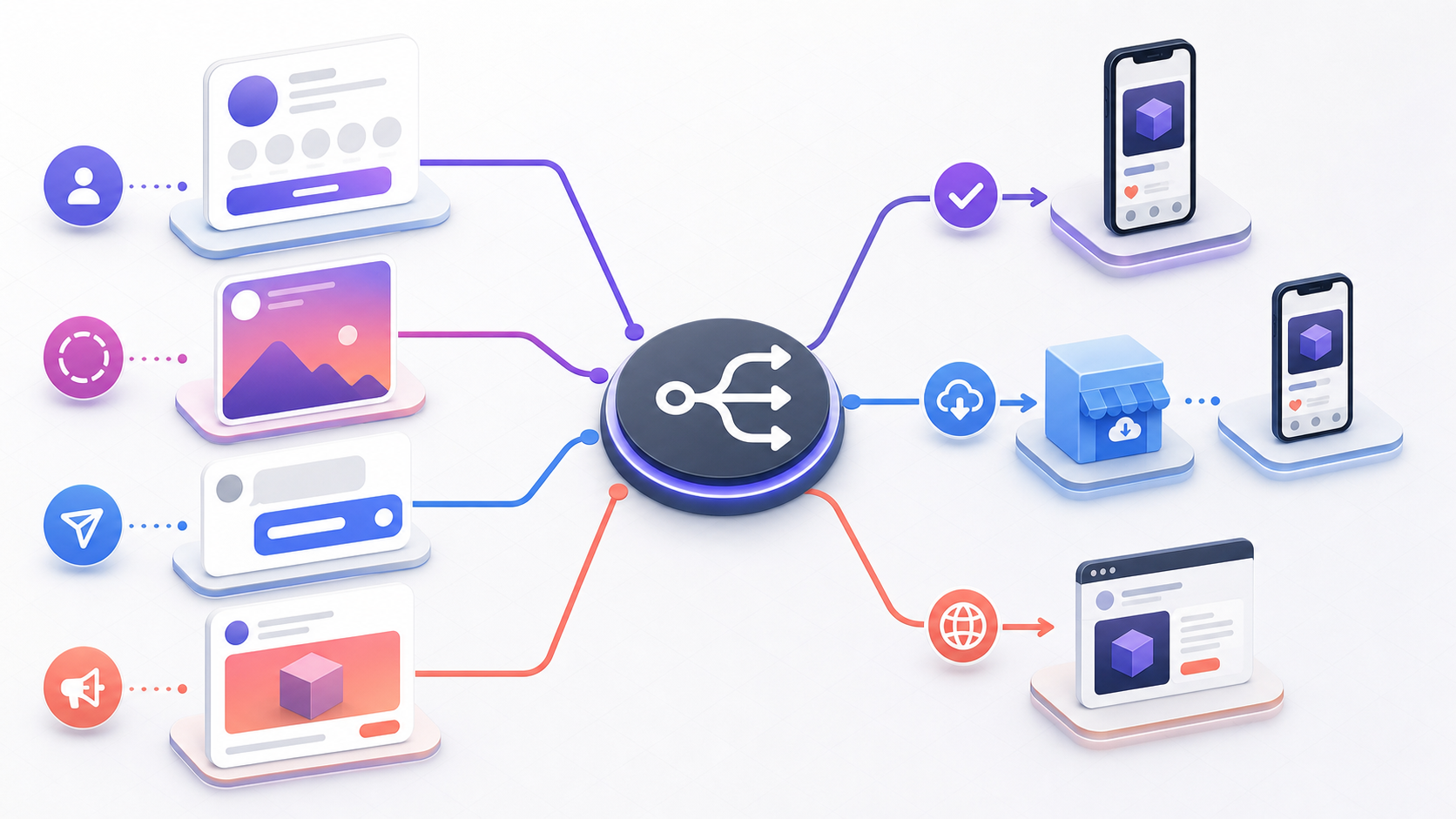
For your own app, the public link should normally be a standard HTTPS URL on a domain you control. That one URL can represent the same content on the web, iOS, and Android:
https://links.example.com/products/sku-482The operating system decides whether an installed app is authorized to handle the domain. Your app then parses the route and navigates to products/sku-482. If the app cannot open, the web server provides the fallback.
| Layer | iOS | Android | What your team owns |
|---|---|---|---|
| Verified HTTPS mechanism | Universal Links | Android App Links | Domain, association file, app declaration, route handler |
| Association file | apple-app-site-association | /.well-known/assetlinks.json | Correct identifiers, paths, certificates, HTTPS delivery |
| Installed-app result | Exact in-app screen when the tap context and route qualify | Exact in-app screen when the domain is verified and route matches | Navigation and safe parameter handling |
| App absent | Web URL opens | Web URL opens | Useful web or store fallback |
| Destination after install | Requires deferred deep linking | Requires deferred deep linking | Pre-install context and first-open delivery |
Apple describes Universal Links as standard HTTP or HTTPS links that can open the app directly while continuing to work as web links when the app is not installed (Apple Developer). Google similarly describes Android App Links as verified website URLs that can open corresponding app content without a chooser and fall back to the website for users without the app (Android Developers).
That verification solves domain ownership; it does not solve campaign routing by itself. You still need to define allowed paths, validate IDs, handle authentication, decide what happens to deleted or restricted content, and record the final destination.
Why Instagram's in-app browser changes the result
Organic links tapped inside Instagram commonly begin in its embedded browser. The webview controls the first navigation and may not behave like a clean tap from Mail, Messages, Safari, or Chrome. A URL can therefore be correctly associated with your app and still remain in the browser for a particular placement or redirect chain.
Redirects are especially easy to misread. A tracking or shortening domain may receive the tap before the verified app domain, which changes the URL the operating system evaluates. AppsFlyer's current link-testing guidance notes that a real user tap is required and that JavaScript or ordinary 301/302 redirects cannot trigger Universal Links or Android App Links reliably in some browsers (AppsFlyer Help Center).
The practical response is not to search for one magic scheme. Design a controlled fallback chain and make the transition visible:
- Try the verified HTTPS handoff where the platform permits it.
- If the in-app browser retains the page, show a clear, user-initiated Open in app action.
- If the app is absent, send the user to the correct store or useful mobile web content.
- If the campaign promises a post-install destination, restore it through deferred deep linking.
- Preserve only the attribution data you actually need.
How to create an Instagram deep link for your own app
Building the link is a route-contract exercise before it is a dashboard exercise. Use this sequence for Instagram-to-app journeys.
1. Define the exact destination
Write the outcome in user language: “open product SKU 482,” “start episode 7,” or “show invite ABC.” Avoid a vague requirement such as “open the app.” Then specify:
- the canonical HTTPS path;
- required and optional parameters;
- whether authentication is needed;
- the behavior for deleted, expired, private, or unauthorized content;
- the web fallback;
- the first-open result when the app was not installed.
A stable destination contract might use https://links.example.com/products/sku-482?campaign=summer_creator_12. The app should derive navigation only from allowlisted paths and validated values. Never let an arbitrary incoming URL trigger a privileged action.
2. Configure verified app links
On iOS, add the Associated Domains entitlement, publish the AASA file, and handle the incoming user activity. On Android, add an HTTPS intent filter with android:autoVerify="true", publish assetlinks.json, and handle the incoming intent.
Google requires assetlinks.json to be available over HTTPS at https://your-domain/.well-known/assetlinks.json, with no redirect, and to contain the production app ID and matching SHA-256 signing-certificate fingerprint (Android Developers). Use the free AASA and assetlinks.json generator to create the basic files, then validate the deployed versions rather than assuming the source files match what a device receives.
Keep route rules narrow at first. It is easier to prove /products/* and /offers/* than to claim the entire domain and discover that account, payment, or support URLs now open unexpectedly in the app.
3. Add an Instagram-safe handoff
For organic bio, Story, and DM traffic, decide what the user sees if Instagram keeps the first page in its webview. A lightweight landing page should state the destination, offer one clear app-opening action, and provide a web or store alternative. Avoid countdowns, repeated automatic scheme launches, or redirect loops that trap the user in permission prompts.
The handoff should be branded, fast, and honest. It should not claim the app opened until the app reports the route. If a user must tap the browser menu and choose an external browser on a particular device, show that instruction only after you detect the relevant failure state.
4. Add deferred deep linking for new users
A normal Universal Link or App Link does not carry the destination through a new installation. If someone without your app taps a Story link for product 482, installs, and then sees the home screen, the verified link worked only up to the store.
Deferred deep linking stores the intended route before the store handoff and delivers it on first open. Define an expiry, deduplicate repeated taps, and choose a safe default when the install cannot be matched. The post-install route should use the same canonical destination contract as the installed-app path.
5. Add campaign parameters without breaking the route
Use a consistent taxonomy such as:
source=instagram
medium=organic-social
campaign=summer_launch
content=story_creator_12
Keep routing keys separate from reporting keys. A product ID decides where the user goes; campaign parameters explain why the visit happened. Do not put personal or sensitive information in URLs, because URLs can appear in browser history, logs, screenshots, and analytics exports.
For teams that need both routing and measurement, Deeplinkly combines verified iOS and Android links, deferred destinations, branded domains, and campaign attribution in one link flow. Its role is most useful after the route contract is clear: the platform can manage the cross-channel handoff while the app remains responsible for safe, correct navigation.
How to test an Instagram deep link across placements
Do not test only by pasting the URL into a browser. Apple notes that context matters—for example, a same-domain tap while browsing in Safari may remain in Safari because the system interprets that as the user's intent (Apple Developer). Test real taps from the surfaces where the campaign will run.
Build a matrix that covers both operating systems, app state, placement, and final content:
| Test case | Expected result | Evidence to capture |
|---|---|---|
| iPhone, app installed, organic Story sticker | Exact in-app destination or the documented handoff page followed by that destination | Screen recording, route received, destination viewed |
| Android, app installed, Instagram bio | Exact screen without an unintended chooser | App Link verification state, route, final screen |
| Either OS, app absent, organic link | Correct store or useful web fallback | Store/web URL and preserved campaign context |
| Either OS, fresh install | First open reaches the promised destination | Click ID or route token, install, first-open route |
| Instagram DM | Same result as the campaign's intended organic flow | Referrer/placement label and destination |
| Paid Instagram ad with App destination | Exact app content for installed users; configured store/deferred result for new users | Ads setup, app open, destination, attribution record |
| External app to Instagram profile or Reel | Native Instagram content where supported; working Instagram web fallback otherwise | Source app, OS, installed state, actual landing surface |
| Deleted, private, expired, or unauthorized content | Safe explanatory screen or relevant collection—not a crash or home-screen mystery | Error classification and fallback route |
Run each critical row on at least one current iOS device and one current Android device using release-like builds and production association files. Repeat after changing the short domain, AASA file, signing certificate, Android intent filters, navigation library, authentication flow, or Instagram placement.
Useful platform checks
For Android, verify the live Digital Asset Links file, confirm the production certificate fingerprint, and inspect the device's domain verification state. Google's troubleshooting guide lists invalid assetlinks.json, fingerprint mismatches, redirects, and incorrect intent filters as common reasons a link opens in the browser (Android Developers).
For iOS, verify the AASA response and entitlement, then test a genuine external tap after installation. Run both association files through a deep link debugger so server headers, redirects, and identifiers are checked before you spend time changing app navigation.
How to fix an Instagram deep link failure
Start with the observed destination. “Broken” is too broad to debug.
It opens Instagram's browser instead of your app
Confirm that the first tapped domain is the verified domain. If a shortener or analytics wrapper sits in front, test the direct URL and the wrapped URL separately. Then check AASA or assetlinks.json, app declarations, route matching, and the user's link-opening preferences.
If the direct link works from Messages but not from Instagram, the association may be correct and the webview handoff may be the failing stage. Use a user-initiated landing-page action and keep a usable web fallback. Do not respond with an endless automatic redirect loop.
The app opens, but only to the home screen
The operating system handoff succeeded. Inspect the route your app received, parameter decoding, authentication gate, navigation timing, and content lookup. Queue the destination until sign-in or initialization completes instead of discarding it during startup.
Log “app opened” and “destination viewed” as separate events. Otherwise, a home-screen failure looks like a successful deep link in aggregate reporting.
It works on iOS but not Android
Check the release fingerprint in assetlinks.json, especially when Google Play App Signing differs from the key used locally. Confirm that every declared host serves its own association file without redirects and that the intent filter includes the matching scheme and host.
It works on Android but not iOS
Check the Associated Domains entitlement in the installed build, not just the project file. Confirm the AASA app identifier and path rules, inspect the live HTTPS response, and account for same-domain Safari behavior and prior user choices.
New users install but lose the destination
That is not a basic association failure. The campaign needs deferred deep linking, and the first-open handler must map the delivered route to the same destination contract used for existing users. Test with a genuinely fresh install and a registered test device where your provider requires one.
A link to Instagram opens the feed, not the intended post
Verify that the original Instagram content is still public and that you copied its full canonical URL rather than a profile URL, truncated redirect, or previously generated smart link. Test the raw HTTPS destination first, then the app-opener wrapper. Keep the web destination as a graceful fallback because the target app and device—not your page—ultimately decide whether Instagram opens natively.
Measure the journey, not just the click
A click count cannot tell you whether the user reached the promised screen. Instrument the route as a short funnel:
link_clicked— the campaign URL received a real tap.route_resolved— platform, app state, and fallback were selected.app_openedorweb_fallback_viewed— the chosen surface loaded.deep_link_delivered— the app received a validated route.destination_viewed— the intended product, episode, offer, or profile appeared.conversion_completed— the campaign's actual outcome occurred.
Break results down by placement, OS, app version, installed versus new user, and destination—not by personally identifying URL data. A spike in clicks with flat destination_viewed events points to routing or startup failure. Strong destination views with weak conversions points to the offer or in-app experience instead.
Use separate links or parameters for bio, Story, DM, creator, QR, and paid placements. This makes failures reproducible and avoids giving the entire Instagram channel credit for one surface that performs well.
Frequently asked questions
What is an Instagram deep link?
An Instagram deep link is a URL that opens specific content in a mobile app instead of a generic webpage or app home screen. The term can mean a link from another channel into Instagram, or a link from Instagram into your own app.
How do I create an Instagram deep link to a profile, post, or Reel?
Copy the public HTTPS URL for the profile, post, or Reel and test it from the channels where you will share it. If you need more consistent app opening, branding, or measurement across embedded browsers, use a smart-link service with an Instagram web fallback.
Why does my Instagram deep link open in a browser?
Instagram may keep organic taps inside its in-app browser, or a tracking redirect may prevent the operating system from evaluating your verified app domain. Test the direct URL, verify AASA or assetlinks.json, and provide a user-initiated app handoff plus a useful fallback.
Do Instagram deep links work if the app is not installed?
A verified HTTPS link can fall back to the web or an app store when the target app is absent. To make a new user reach the same specific content after installation, you also need deferred deep linking.
Can I use the same Instagram deep link on iOS and Android?
Yes. One HTTPS URL on a domain you control can be configured as an iOS Universal Link and Android App Link, with platform-specific app setup and a shared web fallback.
Can I track installs and purchases from an Instagram deep link?
Yes, when the link and app record the campaign context through click, install or re-engagement, destination delivery, and conversion. Use distinct parameters for each Instagram placement and avoid sensitive data in the URL.
Conclusion: ship the route, fallback, and proof together
The right Instagram deep link is not a hardcoded app scheme or a short URL that happened to work once. It is a tested journey: the exact destination for installed users, a useful fallback for everyone else, a deferred route when installation intervenes, and events that prove the promised content appeared.
Start by choosing the direction—into Instagram or out to your own app. For an Instagram-to-app campaign, document one canonical route, configure verified links on both platforms, add an in-app-browser handoff, and run the placement matrix before launch. If the campaign needs post-install continuity and attribution, use a managed deep-link layer and judge it by destination_viewed, not clicks alone.