
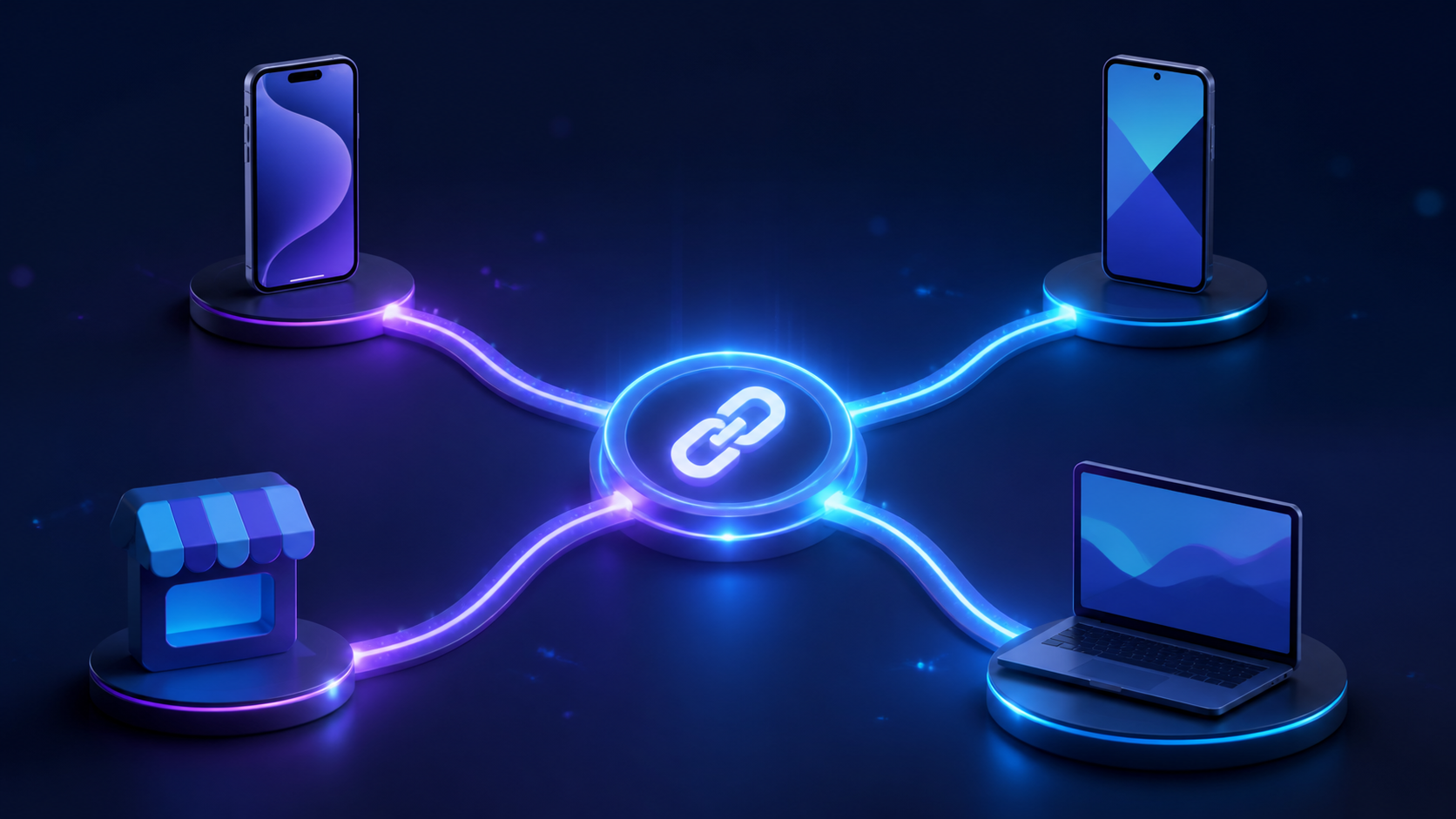
A campaign link can appear healthy in a dashboard and still fail the moment a real customer taps it inside Instagram, opens it on a Samsung device, or installs the app before returning to the intended product. AppsFlyer OneLink is designed to control that journey, but a reliable implementation depends on more than generating a short URL. The template, mobile app configuration, link parameters, and test plan must agree.
This guide takes you from routing design to a production-ready OneLink. It also explains the limits and current plan changes worth evaluating before you make the link layer part of your growth stack.
> Plan note for August 2026: AppsFlyer says its updated Zero plan takes effect on August 13, 2026. Core short links, QR codes, and click reporting remain, while advanced capabilities such as deferred deep linking, branded domains, Smart Script, Smart Banners, bulk links, and expanded API access move outside the updated free package. Audit your existing use cases against the official Zero plan update before treating a proof of concept as a permanent free setup.
What is AppsFlyer OneLink?
AppsFlyer OneLink is a link-routing and attribution system that uses one web URL to send each user to the appropriate app, app store, or web destination. A OneLink template defines the default platform and install-state routing, while custom links add campaign attribution and in-app destination data.
That distinction—template versus link—is the first thing to get right. The template is not normally the campaign asset you publish. It is the reusable routing foundation from which you create many clickable links for email, social, QR, referral, paid, and owned campaigns.
AppsFlyer’s OneLink guide describes three jobs handled by the system:
- Route users based on device, operating system, and whether the app is installed.
- Pass deep-link context so existing users open the intended in-app content.
- Preserve campaign and destination data for deferred deep linking after a new user installs.
OneLink does not replace the mobile application’s routing logic. Your app still needs to recognize an agreed destination value and map it to a screen. It also does not make Universal Links or Android App Links work by magic: the app and domain association must be configured correctly on each platform.
How AppsFlyer OneLink routes each click
A useful way to design OneLink is to write the routing table before opening the dashboard. For every campaign, decide the expected outcome in at least four states.
| User state | Expected destination | Implementation dependency |
|---|---|---|
| iOS, app installed | Exact screen in the iOS app | Universal Link association plus in-app route handling |
| Android, app installed | Exact screen in the Android app | App Link verification plus in-app route handling |
| App not installed | Correct store, then exact screen on first open | Store redirect, AppsFlyer SDK, and deferred deep-link handling |
| Desktop or unsupported device | Relevant web page or send-to-phone flow | Desktop web fallback such as af_web_dp |
On iOS, Universal Links rely on an associated-domain entitlement and an apple-app-site-association file whose app identifiers match. Apple’s associated domains documentation notes that every subdomain used needs the proper entitlement and association file. AppsFlyer hosts the association file for a standard OneLink domain after you configure the template, but the app-side entitlement is still your responsibility.
On Android 6 and later, verified App Links use an intent filter and a Digital Asset Links statement to associate a web domain with an app. Google’s App Links overview explains that verification lets matching HTTPS links open the app without a chooser. Your release signing fingerprint, package name, host, and manifest filters must all match.
When the app is not installed, the click first routes to the appropriate store or a configured web page. Deferred deep linking adds the second half of the journey: on first launch, the SDK returns the saved destination data and your code routes the user to the promised content. If the SDK or route handler is missing, the store redirect may look successful even though the post-install experience collapses to the home screen.
AppsFlyer OneLink setup: from template to live link
Treat setup as a small release, not a marketing-only task. AppsFlyer estimates about 1.5 hours for a marketer and mobile developers to create a template with installed-user routing, according to its template setup guide. Real production readiness may take longer because test builds, store installs, and channel-specific behavior must also be verified.
1. Define the routing contract
Before touching the UI, agree on:
- The app content types you will support, such as product, offer, article, profile, or referral.
- One stable identifier for each destination, such as a product SKU or content ID.
- The behavior for invalid, missing, expired, or unauthorized destinations.
- The store and web fallbacks for iOS, Android, desktop, and unsupported devices.
- Which parameters belong to attribution reporting and which are consumed by the app.
A compact contract might use deep_link_value=product and deep_link_sub1=SKU-1234. The app route handler can then validate the content type, fetch the object by ID, and fall back safely if it no longer exists. Avoid encoding presentation decisions into the link; a stable content identifier will survive redesigns better than a screen name.
2. Create the OneLink template
In AppsFlyer, go to Engage → OneLink management, add a template, and give it an internal name based on the app or user experience—not a campaign. Choose a branded, durable subdomain carefully. AppsFlyer warns that the subdomain cannot be changed after custom links are created from the template.
Add the Android and iOS apps, then set the default destinations for users without the app. If desktop traffic is possible, replace the generic web-store destination with a useful page. An email subscriber clicking at work is better served by a product page or send-to-phone flow than by a desktop rendering of an app store.
For installed users, configure iOS Universal Links and Android App Links. Supply the iOS Team ID and the Android SHA-256 certificate fingerprint requested by the template. AppsFlyer then provides or hosts the association material, while developers add the associated domain and intent-filter configuration to the apps.
Use a URI scheme only as a planned fallback. Schemes are less securely associated with a single app and behave differently across browsers. A fallback should be tested as its own route, not assumed to behave like a verified HTTPS link.
3. Create a custom campaign link
Select the template, click Add link, and choose the experience that matches the channel. AppsFlyer exposes presets for social-to-app, QR-to-app, email-to-app, text-to-app, referral-to-app, app-to-app, and custom journeys. The custom-link creation guide then walks through media source, general settings, deep linking, redirection, and additional parameters.
At minimum, set a truthful media source and campaign name. Add retargeting only when you intend to measure existing-user re-engagement and the app is configured for it. Then add the deep_link_value and any deep_link_sub1-10 values your developers agreed to handle.
Finally, generate the link and record both its owner and purpose. A short URL with no registry becomes technical debt: nobody knows whether it is safe to edit, which campaign still uses it, or what dashboard values it should produce.
AppsFlyer OneLink parameters that matter
A OneLink URL typically starts with a branded or AppsFlyer-hosted domain, a template ID, and either visible query parameters or a short-link ID. AppsFlyer’s link structure reference shows the long-form pattern:
https://yourbrand.onelink.me/A1b2
  ?pid=owned_email
  &c=summer_launch
  &deep_link_value=product
  &deep_link_sub1=SKU-1234
The most important parameters serve different owners:
| Parameter | Purpose | Primary owner |
|---|---|---|
pid | Media source used for attribution | Growth or UA |
c | Campaign name | Growth or UA |
af_channel, af_adset, af_ad | Reporting granularity | Growth or UA |
deep_link_value | Main in-app destination type or value | Mobile/product |
deep_link_sub1-10 | Additional route or experience context | Mobile/product |
af_web_dp | Desktop web destination | Web/growth |
af_ios_url, af_android_url | Platform-specific fallback destinations | Growth/mobile |
af_reengagement_window | Retargeting attribution window | UA/analytics |
pid is mandatory for meaningful attribution. AppsFlyer states that a missing PID is attributed to a “None” media source, losing the original source. Do not reuse reserved integrated-partner identifiers for owned channels; names such as owned_email, sms, or another governed internal source are easier to reconcile.
Keep parameter names lowercase and values consistent. Decide whether campaign names use slugs, snake case, or another convention, then enforce it. SummerLaunch, summer_launch, and summer-launch can become three reporting rows even when humans consider them one campaign.
Use URL encoding for values that can contain spaces or reserved characters. More importantly, validate the destination in the app. A deep link is user-controlled input: route only to approved screens, reject unexpected schemes or hosts, and never treat a link parameter as authorization to expose private content.
Short and long links have different operational tradeoffs. Long links are transparent and easy to inspect, version, and generate in a spreadsheet. Short links are cleaner for customers and QR codes, but their behavior lives in a remote configuration. If you use short links, keep an internal registry containing the full resolved settings, environment, owner, and last test date.
Test an AppsFlyer OneLink before launch
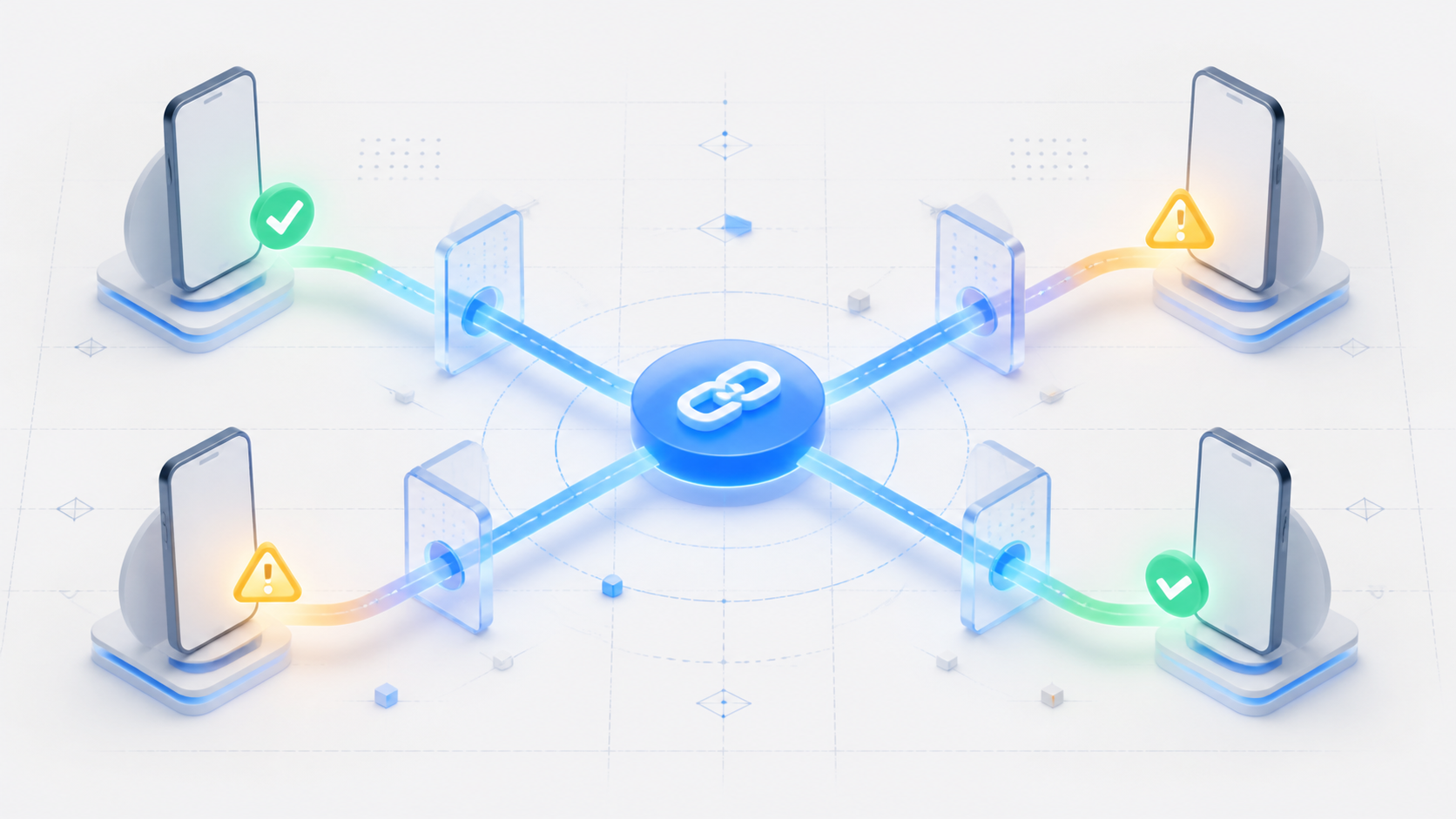
The best OneLink test is not “the link opened once.” It is a matrix that covers install state, platform, channel container, and attribution output. Use real taps on real devices; do not paste the URL into the address bar and call that a Universal Link test.
AppsFlyer’s official OneLink testing steps explicitly warn that a real mobile click is required and that JavaScript or HTTP redirects cannot reliably trigger Universal Links and App Links. For each release candidate, run the following sequence.
Test installed-user routing
- Install the production-signed or correctly associated test build.
- Tap the link from a plain web page or message on iOS.
- Confirm the app opens directly to the intended content.
- Repeat on Android, checking that no unexpected chooser appears.
- Background and force-close the app, then repeat to cover warm and cold starts.
- Verify malformed and expired destination values fall back safely.
For Android failures, inspect the operating system’s domain-verification state rather than guessing. Google documents adb shell pm get-app-links PACKAGE_NAME and related commands in its App Link verification guide. A state other than verified points you toward the manifest, host, certificate, or assetlinks.json configuration.
Test new-user and deferred routing
- Register or prepare a clean test device according to your attribution test process.
- Remove the app completely.
- Tap the OneLink from a real campaign-like surface.
- Confirm the correct regional store listing or planned web fallback opens.
- Install and launch the app using the supported test flow.
- Confirm the first session lands on the exact intended content, not merely the home screen.
- Verify the click and install appear under the expected media source and campaign.
Repeat the test with a different destination value. If every link opens the same screen, the app may be launching correctly while ignoring the deferred payload.
Test hostile channel conditions
Deep links often fail inside the apps where campaigns actually run. Test the final published form in email, SMS, WhatsApp, Instagram or another priority social container, QR, and desktop. Include any ESP click tracking, corporate security redirect, or URL shortener that will exist in production.
Record the outcome as a table with device, OS version, app version, install state, source container, expected destination, actual destination, and attribution result. That artifact makes a future regression diagnosable instead of anecdotal.
Common OneLink failures and how to fix them
The store opens even though the app is installed
First check whether the click occurred inside an in-app browser that blocks or changes verified-link behavior. Then verify iOS associated domains or Android domain status, including the release certificate fingerprint. If the domain association is correct, inspect whether an external redirect or wrapper sits in front of the OneLink.
Do not “fix” this by repeatedly changing app routing code. The app cannot handle a link the operating system never delivers to it.
The app opens, but on the wrong screen
This usually means app launching works but deep-link handling does not. Log the received deep_link_value and sub-values in a privacy-safe test environment, compare them with the link configuration, and verify the same code path handles cold start, warm start, and first launch after install.
Check capitalization and encoding. The AppsFlyer troubleshooting reference says parameter names are case-sensitive and recommends lowercase values to avoid discrepancies.
Clicks appear, but installs or re-engagements do not
Confirm the AppsFlyer SDK is initialized in the production build and that the device is following a valid attribution test procedure. Check whether the link was marked for retargeting and whether retargeting is enabled for the app. Also confirm the media source is not a reserved partner identifier being misused for owned media.
A working redirect proves only that the link resolver responded. It does not prove that SDK callbacks, install matching, event reporting, or dashboard dimensions are correct.
Email or shortened links stop opening the app
External wrappers change the user-facing domain. That prevents iOS and Android from recognizing the verified domain associated with your app. AppsFlyer’s troubleshooting FAQ warns that third-party shorteners and ESP click wrapping can break Universal Links and App Links.
Use an AppsFlyer-supported ESP integration, disable click wrapping for the deep link where appropriate, or test an approved channel-specific fallback. Never add an extra shortener solely for aesthetics.
A recent template change appears to do nothing
AppsFlyer notes that template changes can take up to one hour to apply. Separate propagation delay from a code defect: record the update time, wait for the documented window, and retest with a fresh click. Avoid making several conflicting changes during that period or you will not know which configuration produced the result.
Scale OneLink creation without losing control
Once campaigns multiply, manual creation becomes a consistency problem. Standardize a small link schema, required parameters, allowed values, naming convention, and ownership fields. Automate only after the manual version passes the full test matrix.
For high-volume generation, AppsFlyer’s current OneLink API v2 overview documents a 7.5-million-request monthly account quota for create, update, and delete operations, plus a 1,000-request-per-second rate limit for most endpoints. It also notes that API-created links do not appear in the dashboard’s custom-link list, so you must store them in your own system.
That visibility limitation makes governance essential. Persist the template ID, short-link ID, parameters, owner, campaign, environment, creation response, expiration policy, and last successful test. Add idempotency or duplicate detection in your link-generation service so retries do not create a swarm of equivalent URLs.
AppsFlyer API v1 reached its documented sunset on June 1, 2026. If an older internal tool still calls v1, migration is overdue; verify that update, delete, TTL, and QR behavior match v2 before moving production traffic.
When an AppsFlyer OneLink alternative makes sense
OneLink is a natural fit when AppsFlyer already owns your attribution data, partner integrations, and campaign reporting. Keeping routing and measurement together can reduce reconciliation work. But the deepest integration is not automatically the best fit for every team.
Evaluate an OneLink alternative when:
- Deep linking is the primary need and the broader MMP suite adds cost or operational weight.
- Published, predictable pricing matters to procurement or a fast-growing app.
- Developers need a smaller SDK surface and simpler self-serve setup.
- You want branded domains, deferred routing, raw exports, or APIs on a lower tier than your incumbent offers.
- The August 2026 Zero plan changes remove a capability your current links depend on.
- You need to avoid concentrating link routing and attribution in the same vendor.
Deeplinkly is a developer-first option for teams that want deep linking, deferred deep linking, install attribution, branded domains, and campaign analytics without adopting a broad enterprise MMP workflow. Its AppsFlyer alternative page and published pricing make the tradeoff concrete: compare the required routing and measurement capabilities, integration effort, and growth-volume cost rather than comparing feature counts alone.
If your shortlist also includes Branch or Adjust, separate the decisions. An AppsFlyer vs Branch evaluation may emphasize link routing, journey tools, and ecosystem fit; an AppsFlyer vs Adjust evaluation may place more weight on measurement operations and enterprise integrations. In all cases, run the same five proof-of-concept journeys with the same success criteria before signing: installed iOS, installed Android, deferred iOS, deferred Android, and a hostile in-app-browser channel.
Migration risk deserves its own line item. Published links may live in old emails, QR codes, packaging, creator posts, and customer messages for years. Inventory the domains and short links, preserve old redirects where possible, and ship app support for the new domain before switching traffic. For implementation context, see the deferred deep-linking guide and branded-domain guide.
Frequently asked questions
What is AppsFlyer OneLink used for?
AppsFlyer OneLink creates a single campaign URL that can route users to an iOS app, Android app, app store, or web page based on their device and install state. It also carries attribution and deep-link data so campaigns can be measured and users can reach specific in-app content.
How do I create an AppsFlyer OneLink?
Create a OneLink template in Engage → OneLink management, configure platform and install-state routing, and connect Universal Links and Android App Links. Then add a custom link from that template, set the media source, campaign, deep-link destination, fallbacks, and parameters, generate the URL, and test every supported user state.
Does OneLink work without the AppsFlyer SDK?
Partially. AppsFlyer says basic redirection and app launching can work without the SDK, but attribution, in-app event measurement, and deep linking beyond initial launch require SDK support and app-side handling.
Why does my OneLink not open the app?
Common causes include broken iOS or Android domain association, an incorrect signing fingerprint, an in-app browser limitation, an external shortener or ESP wrapper, an unpropagated template change, or testing by pasting instead of tapping. Identify whether the failure occurs before app launch, during route handling, or during attribution before changing code.
Can I change a OneLink template subdomain?
Not after creating custom links from the template, according to AppsFlyer’s template documentation. Choose a durable subdomain before launch; changing domains later generally requires a new template, app association updates, link migration, and a new mobile release.
Should I use a short or long OneLink URL?
Use a short link when customer-facing simplicity, QR codes, or editable remote configuration matters. Use a long link when transparency, easy debugging, or deterministic generation matters, and keep a registry for every short link so its hidden parameters remain auditable.
Conclusion: treat the link as production infrastructure
Choose AppsFlyer OneLink when you want routing to live beside AppsFlyer attribution and you are prepared to manage the mobile, domain, and campaign configuration as one system. The durable implementation is straightforward in principle: define the routing contract, configure one stable template, govern parameters, test the complete journey matrix, and monitor both destination and attribution outcomes.
Before launch, verify that your required capabilities still fit the post-August 13 plan, test the final link inside the actual campaign container, and document an owner for every production URL. If the cost, SDK scope, or packaging no longer fits, use the same test matrix to evaluate an alternative before migrating live traffic.